Student CogMAP Setup and Activation
This feature is for SA, ML, MA, CA
Watch (about 1 min 30 s):
CogMAP V2 now uses only the student's own setup: a preset and at least one question. Nothing is taken from the class or the centre. A student with no setup cannot be activated, and the app does not offer them CogMAP V2.
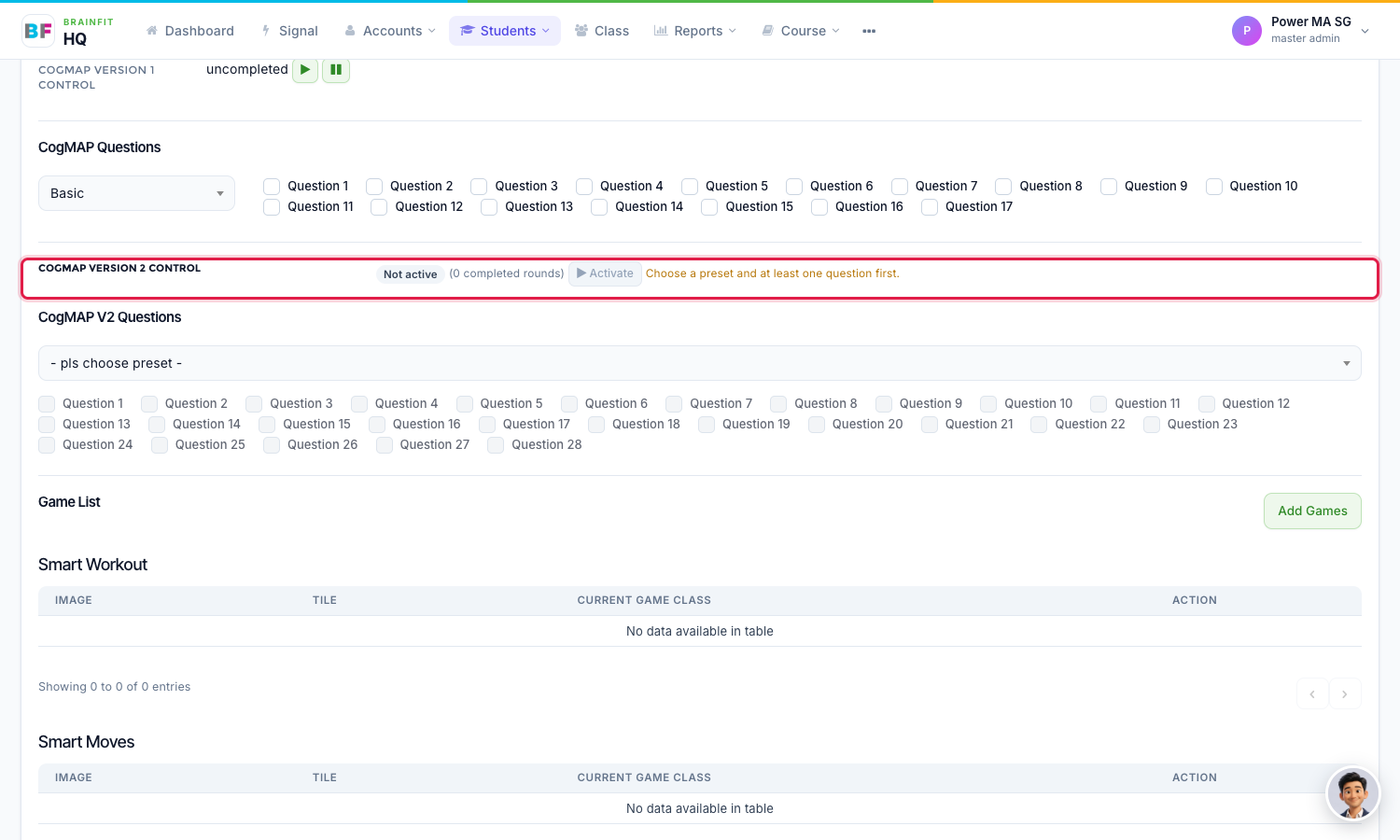
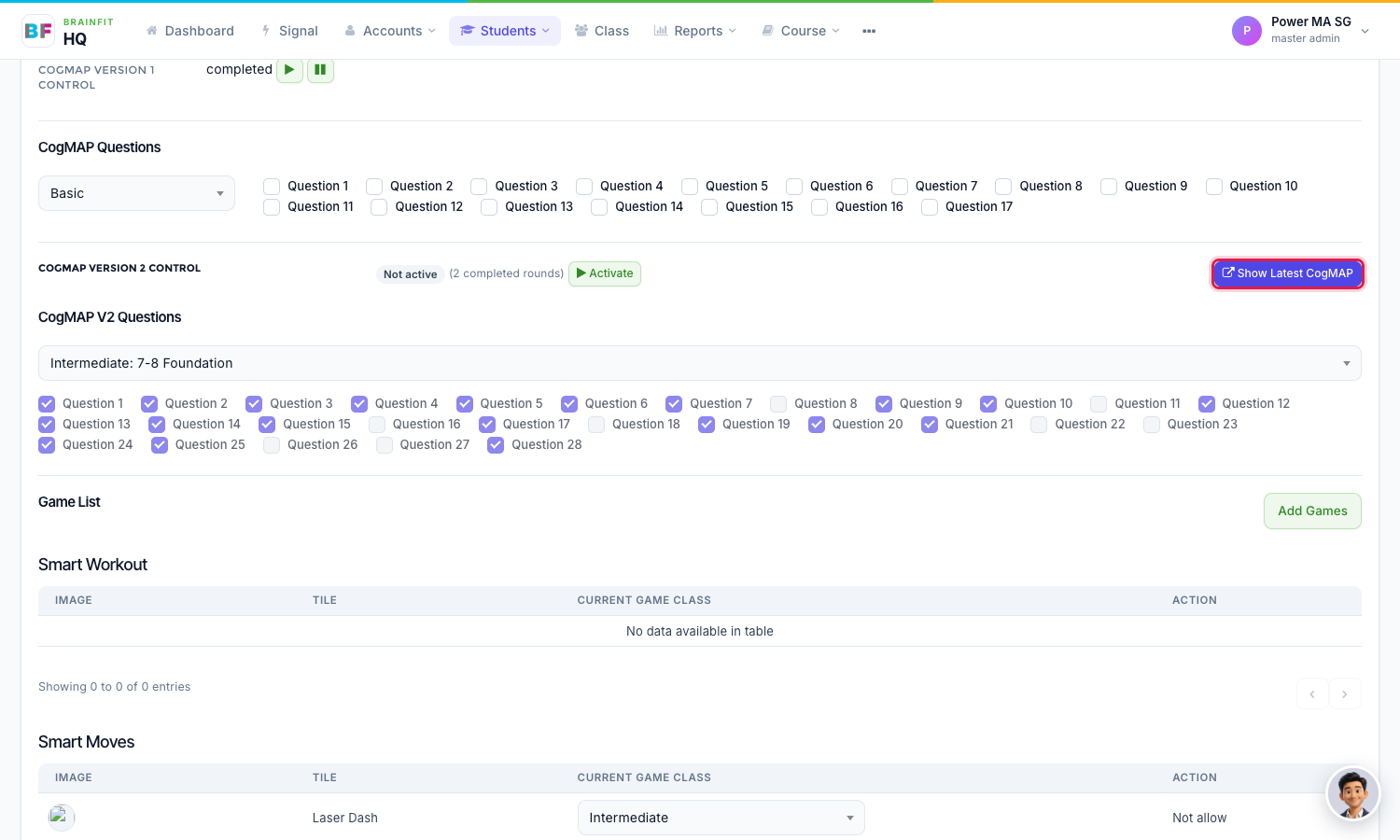
- Open the student's Game config page: in Students, click the gamepad icon on the student (see Assign Games to a Student). Find CogMAP Version 2 Control. For a student with no setup it shows Not active, Activate is greyed out, and the note Choose a preset and at least one question first appears next to it.
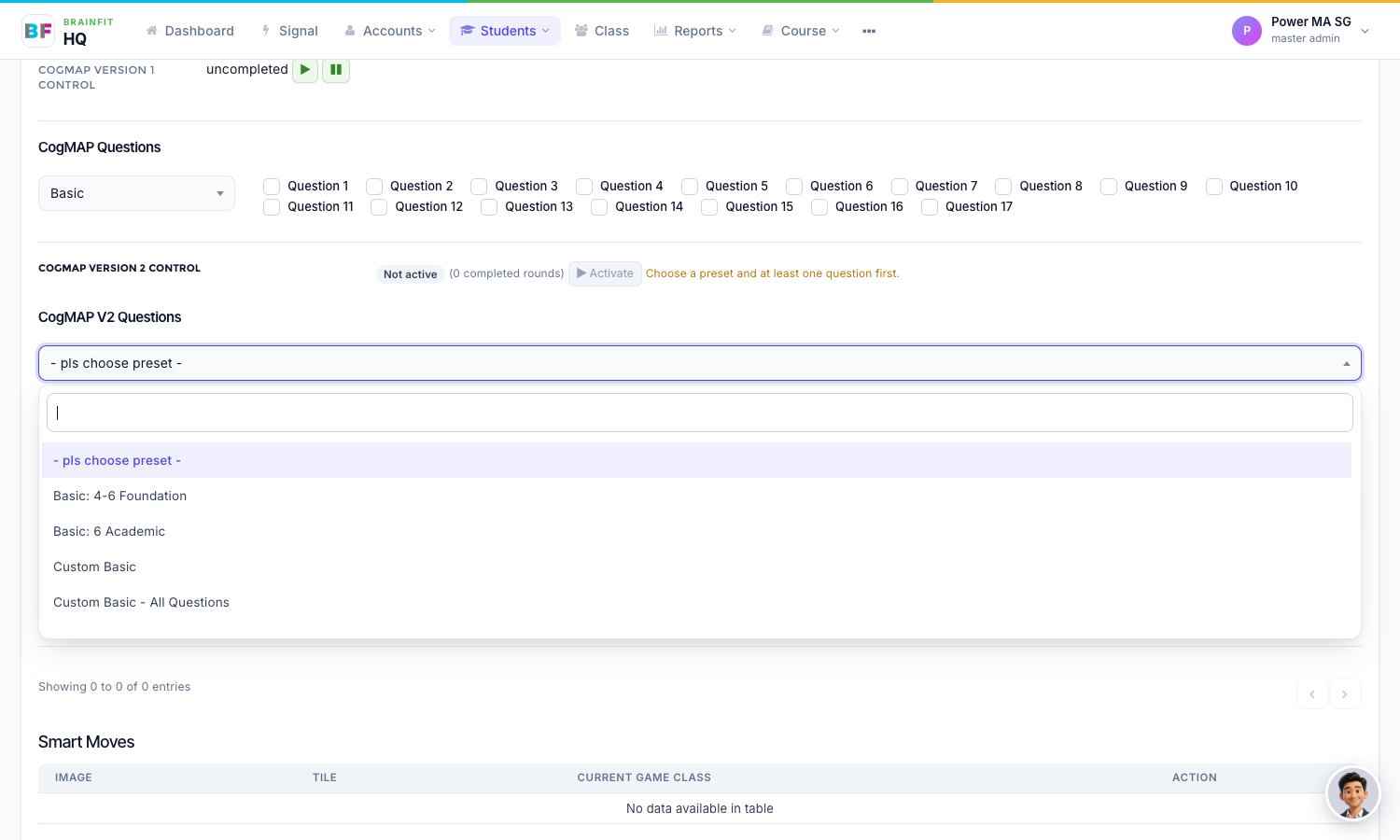
- Under CogMAP V2 Questions, open the preset box and choose a preset (for example Basic: 4-6 Foundation, or Custom Basic). A named preset ticks its own questions. A Custom preset starts with nothing ticked.
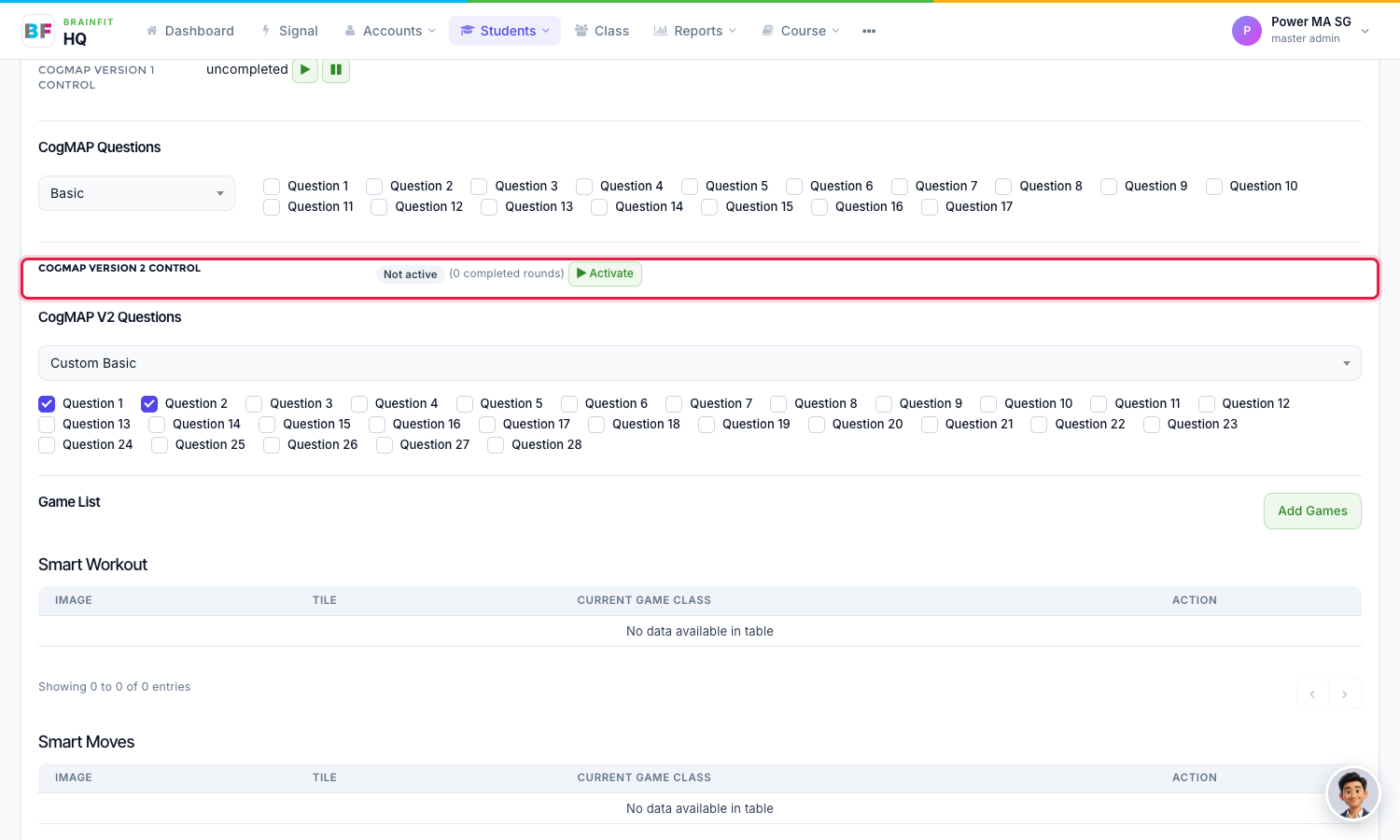
- For a Custom preset, tick the questions the student should do. Reload the page: with a preset and at least one question, Activate is now available. Click it, and the status changes to Active.
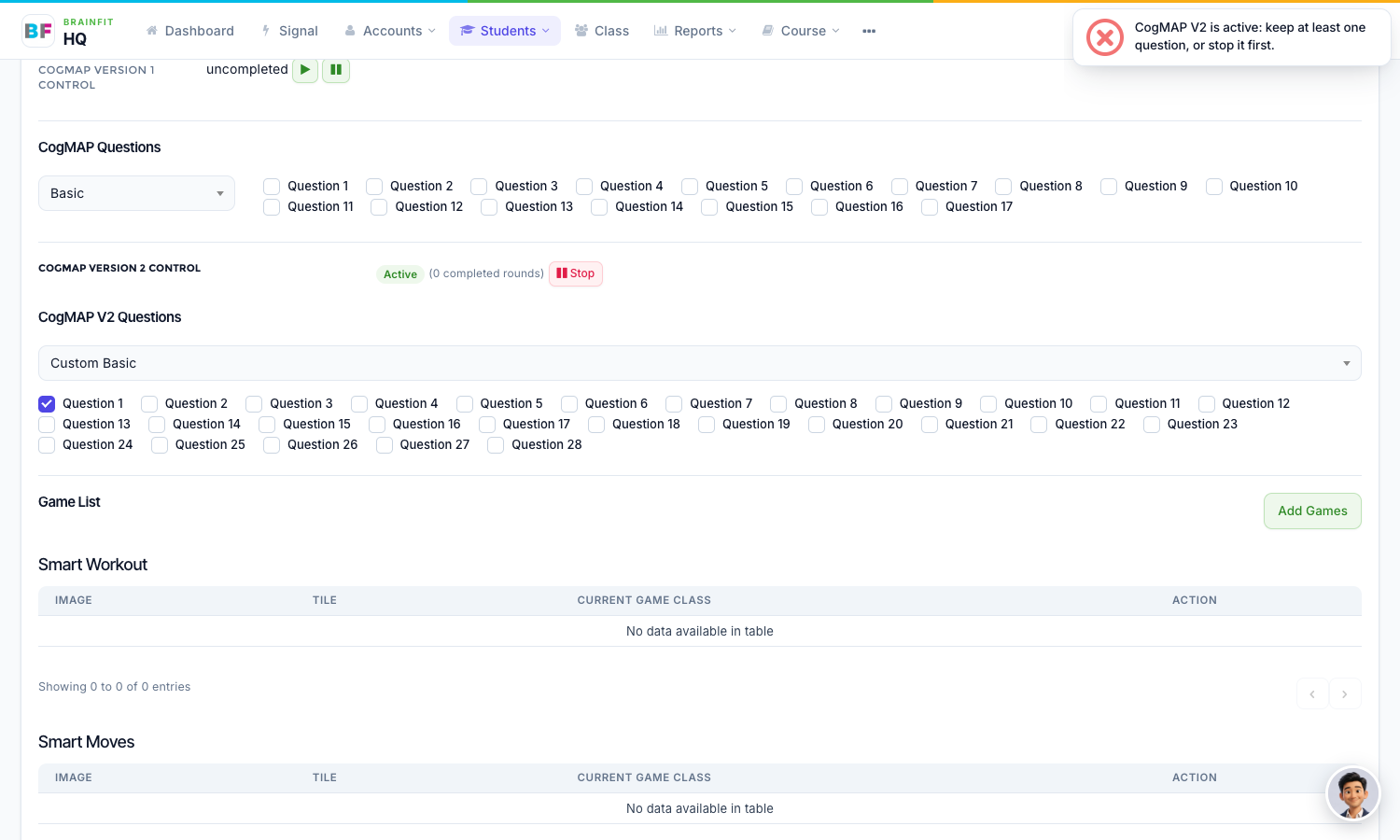
- While CogMAP is Active you cannot untick the last question. The tick stays and the page shows CogMAP V2 is active: keep at least one question, or stop it first. To change everything, click Stop first.
- Once the student has finished at least one round, Show Latest CogMAP appears next to the control. It opens the latest result in a new tab.
Note:
- A Custom preset with nothing ticked counts as no setup.
- Changing to another Custom preset while CogMAP is active keeps the questions already ticked.
- To set up many students at once, use Class Start CogMAP.